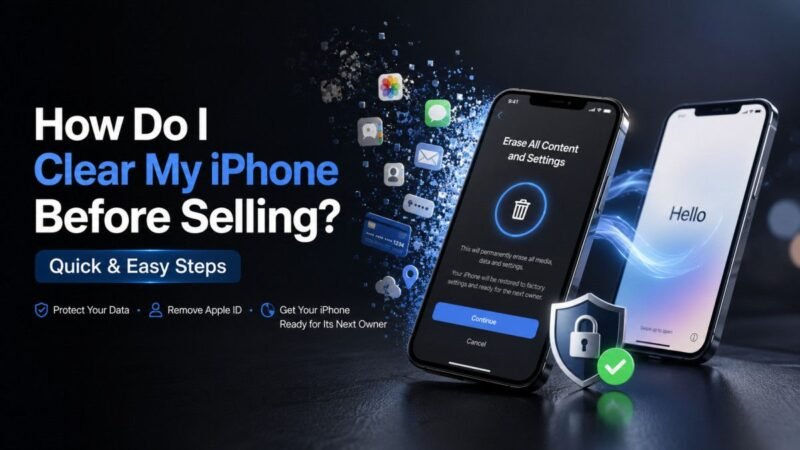
Have you ever wondered whether deleting your photos is enough before selling your iPhone?
For many people, the answer is surprisingly no. Your Apple ID, saved passwords, bank details and other personal information can remain linked to the device if it isn’t erased correctly. Whether you are planning to sell your iPhone, trade it in, hand it down to a family member, or send it for recycling, taking the time to wipe your phone correctly protects your private data.
This guide will walk you through each stage safely so you can sell your iPhone with confidence. You’ll learn how to clear your iPhone, remove your Apple ID, turn off Activation Lock, and confirm that your device is ready for its next owner. We’ll also cover common mistakes that can delay a sale or create problems for the buyer.
Quick & Easy Steps to Clear Your iPhone
Once the prep checklist is done, you’re ready to wipe your iPhone clean. These steps will help make sure your data is properly removed and the device is ready for a new user.
Follow each step for best results.
Step 1: Secure Your Backup
Go to your iCloud settings, select iCloud, and then choose iCloud Backup. Tap Back up now and wait until the timestamp is updated. Or plug in your phone to a Mac or PC via USB and back up your phone to the computer locally using Finder or iTunes.
Settings > [Your Name] > iCloud > iCloud Backup > Back Up Now
Step 2: Unpair Connected Accessories
If it’s an Apple Watch, unpair the wearable and handset now. Sometimes, if the accessories are synced, the next user may face pairing issues.
Step 3: Remove Your Physical SIM
Eject the physical SIM card using the appropriate tool and store it safely. If your mobile plan includes a digital eSIM, select Erase eSIM profile if it is available later during the master reset process.
Step 4: Turn Off Find My iPhone
In most cases, signing out already disables this feature, but it’s good to double-check. Go to:
Settings > [Your Name] > Find My > Find My iPhone
Switch the toggle off and confirm when asked. This step is important because it removes the Activation Lock, so the next user won’t be able to set up the device without your Apple ID.
Step 4: Erase All Content and Settings
You can now completely reset the device.
Go to:
Select Settings > General > Transfer or Reset iPhone > Erase All Content and Settings.
You will be shown a list of the items that will be removed. Tap Continue to proceed.
If asked, enter your device’s passcode and Apple ID password. The iPhone will then begin to delete all data, including apps, settings, photos, and accounts.
Step 5: Wait for the Reset to Complete
The reset process could take a few minutes, depending on how much data is on your device.
Make sure the phone remains turned on and avoid restarting it during this period. When finished, it will automatically restart.
Step 6: Check for the Hello screen.
Once the reset is completed, your iPhone should display the Hello setup screen in multiple languages.
This indicates that the device has been completely erased and is ready to be set up again or handed over to someone else.
Note: Your iPhone has been successfully cleared and is ready for sale, trade-in, or transfer if it displays the Hello screen and no longer asks for your Apple ID during setup.
Before You Start Erasing Your iPhone
Taking a few minutes to prepare your iPhone before selling can save hours of frustration later. Rushing into the factory reset without preparation can cause sync errors and data loss. Complete this quick checklist before touching any system setting.
- Charge Your Battery: Ensure your battery is at least 50% charged or keep it connected to a charger during the reset process. Interruptions during a system reset can corrupt software files.
- Connect to Wi-Fi: Your handset needs an active internet connection to communicate with Apple servers, sign out of cloud services, and clear activation locks.
- Back Up Your Data: Save your photos, messages, and app data to iCloud or a local computer. Once wiped, data cannot be recovered from the device itself.
- Know Your Apple ID Password: You will need your account password to turn off security features like Find My iPhone. If you’ve forgotten your password, recover it before erasing your device to avoid delays.
When Do You Need to Clear Your iPhone?
Your iPhone contains far more than just photos and apps. Clearing your device isn’t only necessary when you are selling it. It also ensures that the next user can set it up without running into Apple’s activation lock, which is tied to your Apple ID. If this step is missed, the device may become unusable for the new owner.
You should clear your iPhone before:
- Selling it privately
- Trading it in for a newer device
- Giving it to a loved one or friend
- Recycling it through an authorised program
- Sending it away for permanent disposal
- Donating it to a charity or organisation
How to Remove Apple ID and Find My iPhone
The first thing that you should do before selling your iPhone is to delete your Apple ID and disable Find My iPhone. Many people think that a factory reset will delete everything, but it doesn’t always do that.
The Apple Activation Lock is a security feature that helps to keep your device secure if it is lost or stolen. It’s a great security option, but it can also stop the next owner from using the iPhone if your Apple ID is still connected to it.
How to Remove Your Apple ID
- Open Settings.
- Tap [Your Name] at the top of the screen.
- Scroll to the bottom and tap Sign Out.
- Enter your Apple ID password when asked.
- Choose whether you’d like to keep a copy of your data on the device (this isn’t necessary if you’re selling it).
- Tap Sign Out again to confirm.
Once completed, your iPhone will no longer be associated with your Apple account.
What Is Activation Lock?
Activation Lock is automatically enabled when Find My iPhone is turned on. Its purpose is to stop anyone else from using your device if it’s lost or stolen.
If you forget to disable Activation Lock before selling your iPhone, the buyer won’t be able to complete the setup process without your Apple ID and password. This can delay the sale and can be very frustrating for both parties involved.
What If You’ve Already Sold Your iPhone?
If you already gave it away and you’ve realised that it is still connected to your Apple ID, you can remove it remotely in iCloud by signing in and removing your device from the list of trusted devices.
Doing this as soon as possible helps the new owner activate the iPhone without any issues.
How to Confirm Everything Has Been Removed
Take a minute to confirm that the reset was successful before packaging your iPhone or handing it over to its new owner.
A properly cleared iPhone should meet the following requirements:
| Check | What You Should See |
| “Hello” screen. | The initial Apple setup screen appears after a restart. |
| Apple ID removed | Your account is no longer signed in. |
| Find My iPhone disabled | Activation Lock has been removed. |
| Personal content erased | No photos, messages, apps or documents remain. |
| SIM card removed | Your mobile service is no longer linked to the handset. |
If all of these items are complete, your iPhone is ready for its next owner.
Common Mistakes to Avoid
Preparing an iPhone to sell is easy, but a few common mistakes can create problems later.
| Mistake | What Happens | What to do instead? |
| Only deleting photos and apps | Personal data and accounts remain; Activation Lock stays on | Use “Erase All Content and Settings” |
| Forgetting to unpair Apple Watch | The Apple Watch stays linked and may create issues for the next owner | Unpair before the erase |
| Leaving eSIM active | A new owner cannot activate their own mobile plan easily | Delete or transfer the eSIM |
| Erasing without signing out / turning off Find My | Activation Lock remains; phone is unusable for the buyer | Sign out first or enter the password during the erase. |
| Factory resetting from recovery mode without credentials | A lock can stay active | Prefer the Settings method while online |
| Skipping the backup | Data is permanently lost | Always back up first |
What to Do After Clearing Your iPhone
Once your iPhone has been erased and displays the Hello screen, it’s ready for its next owner. Before handing it over, remove the SIM card, clean the device, and gather any original accessories you plan to include.
If you’re ready to sell, Mobile Guru offers a simple way to check your iPhone’s value and complete the selling process online.
Need Another Phone?
If you are replacing it, choosing to buy refurbished iPhones might be a good choice to save money and still receive a reliable device. Many Australians prefer refurbished iPhones that are not only quality tested and cheaper than the brand-new ones but also come with the features that people use every day.
Ready to Sell Your iPhone?
Before you sell your iPhone, you need to do more than just delete your photos. This is the best way to protect your personal information, remove your Apple ID and make sure the next owner can set up the device problem-free.
Hand off your device with confidence by backing up your data, signing out of your Apple account, turning off Find My iPhone and erasing all content and settings. When your iPhone is ready to go, you can shop around for your selling options, or if you’re thinking about upgrading, check whether a quality-tested refurbished handset is the right choice for your next purchase.